interior visualization
Why Interior Design Materials Look Fake in 3D.
Why interior design materials often look fake in 3D renders and how scale, orientation, and depth affect realism.
How interior designers make materials look realistic in 3D by controlling scale, orientation, depth, and surface behavior.
Interior designers often notice that even well-modeled spaces fail to convince clients once materials are applied. Wood appears flat, stone feels artificial, and glass looks opaque or plastic-like. The design intent may be clear, but the finishes do not communicate the quality or tactility expected in real interiors.
This creates friction during presentations. Clients hesitate, question material choices, or struggle to imagine the final result—not because the materials are wrong, but because they do not behave realistically in the render within a broader interior visualization material workflow.
The issue is rarely artistic taste. It is usually a breakdown between how materials are assigned in the model and how the rendering engine interprets them.
In modeling software such as SketchUp, materials often begin as simple colors. These colors function as identifiers, not as physical surfaces.
Rendering engines like Enscape and Twinmotion rely on material data that describes how light interacts with a surface—reflection, roughness, transparency, and depth. When placeholder colors are left unchanged, the renderer has no physical information to work with.
As a result, surfaces appear flat and uniform, regardless of how carefully the model itself is built.
The workflow follows a clear separation of roles:
the modeling software defines where materials belong,
the rendering engine defines how those materials behave.
By replacing placeholder colors with high-quality library materials, designers introduce physical properties that allow surfaces to respond realistically to light. This step establishes the foundation for realism, but it is only the beginning.
Library materials still require refinement to match the specific geometry and construction logic of the project.
Material realism depends on orientation.
Wood grain, in particular, follows structural direction. Floorboards run lengthwise, window frames have vertical grain on posts, and beams follow their span. Default texture mapping ignores these rules and applies materials uniformly.
Rotating textures—often by 90 degrees—aligns the grain with the geometry. This simple adjustment prevents materials from reading as surface decals and instead makes them feel integrated into the structure.
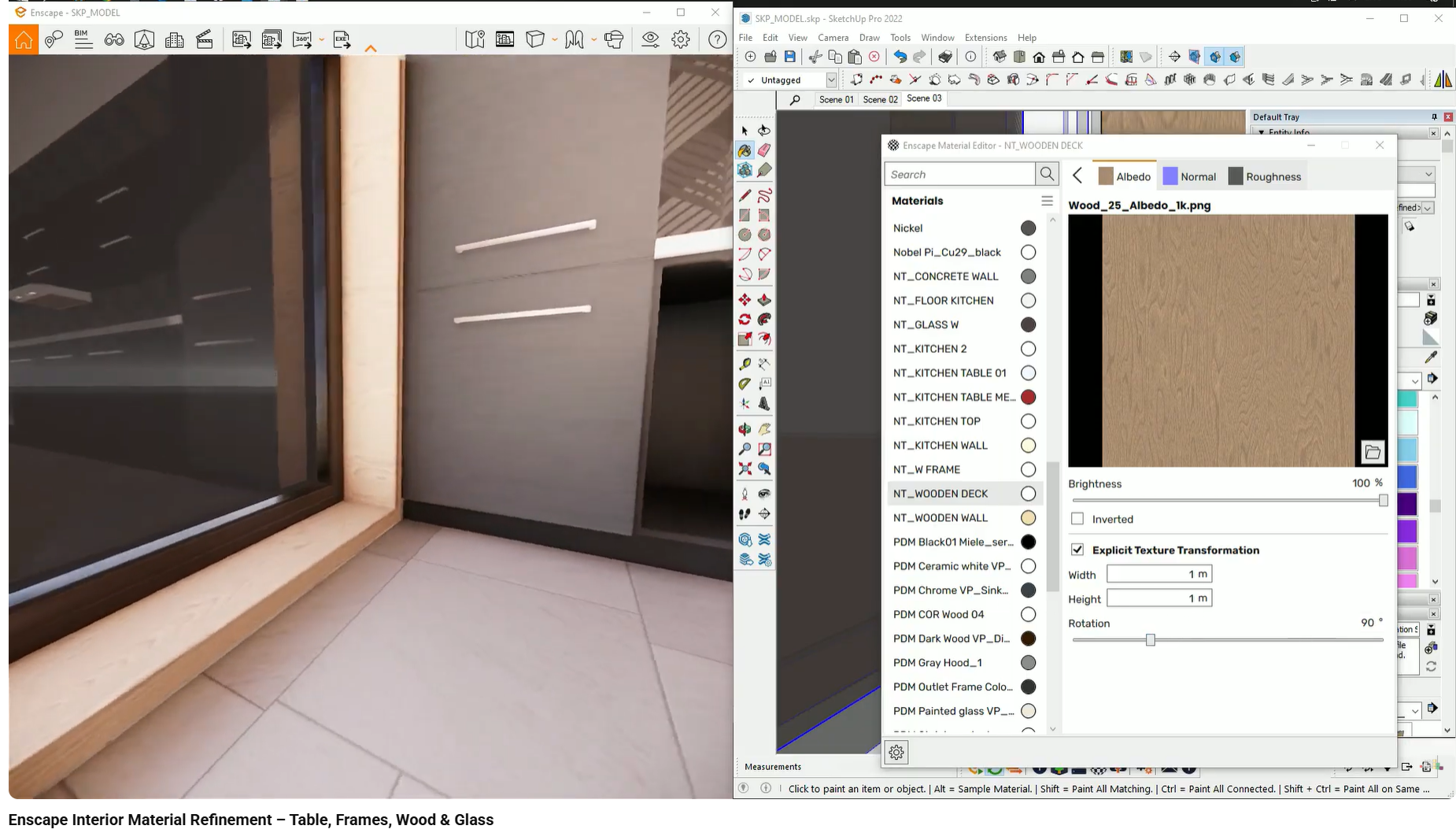
Even high-quality textures can look artificial if their scale is incorrect.
When textures are too small, patterns repeat visibly across surfaces. This repetition immediately signals a digital image rather than a physical material.
Increasing material scale spreads the texture naturally. Brick sizes, stone patterns, and wood grain proportions begin to match real-world dimensions, restoring credibility to large surfaces such as floors, walls, and exterior elements.
Flat textures lack visual weight.
For materials such as brick, stone, or rough concrete, depth is essential. Enabling Parallax (in Twinmotion) or height maps (in Enscape) introduces simulated relief. The surface begins to cast self-shadows and react unevenly to light.
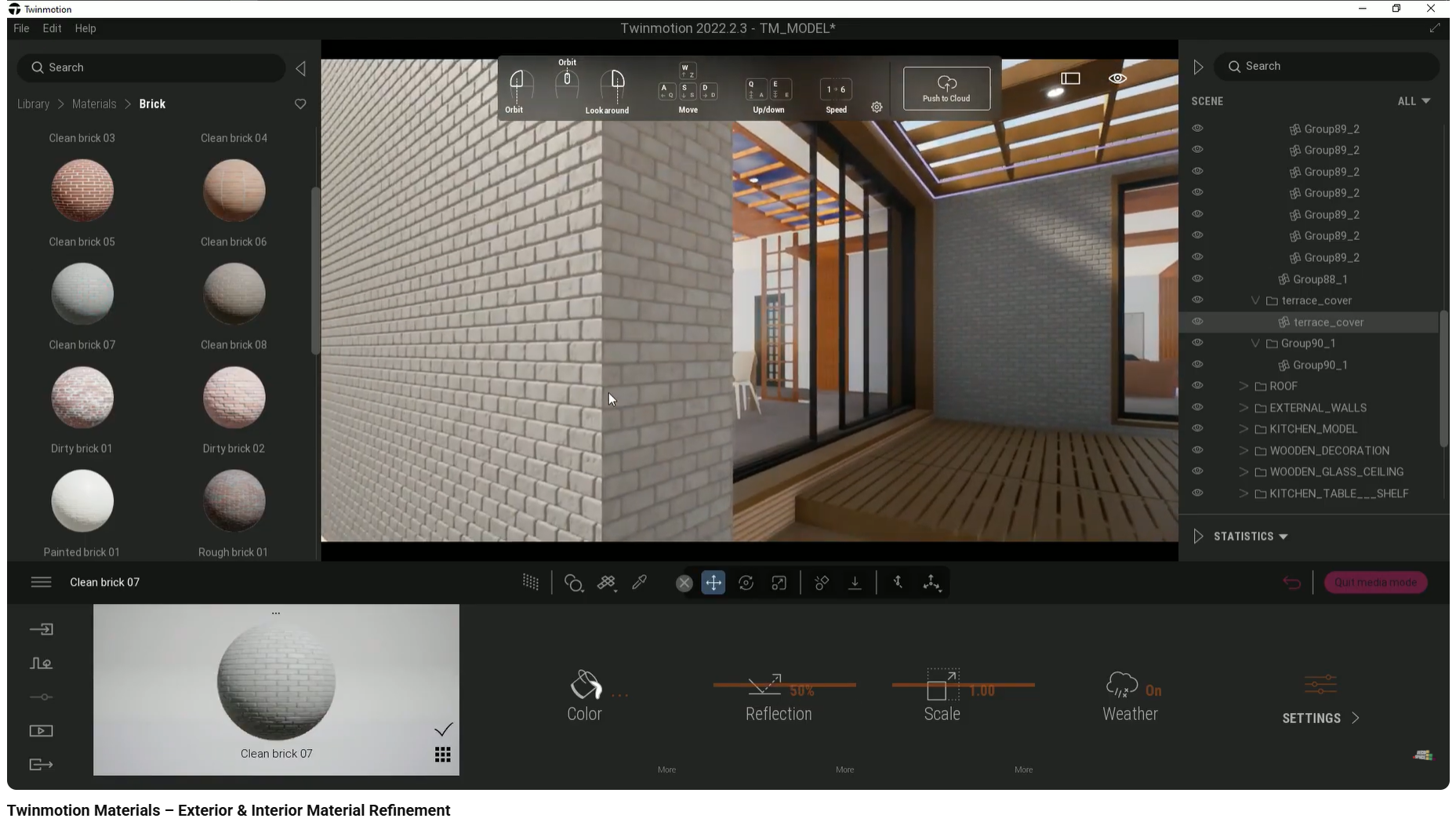
This transformation turns a texture into a surface. Without depth, even correctly oriented and scaled materials still appear artificial.
Surface realism is completed through light behavior.
Roughness and reflection settings determine whether a surface appears matte, glossy, or plastic. Adjusting these values ensures light scatters naturally rather than reflecting uniformly.
Glass is a common failure point. Default settings often include heavy tint or excessive opacity. Reducing opacity and removing tint allows glass to behave transparently, restoring realism and depth to windows and doors.
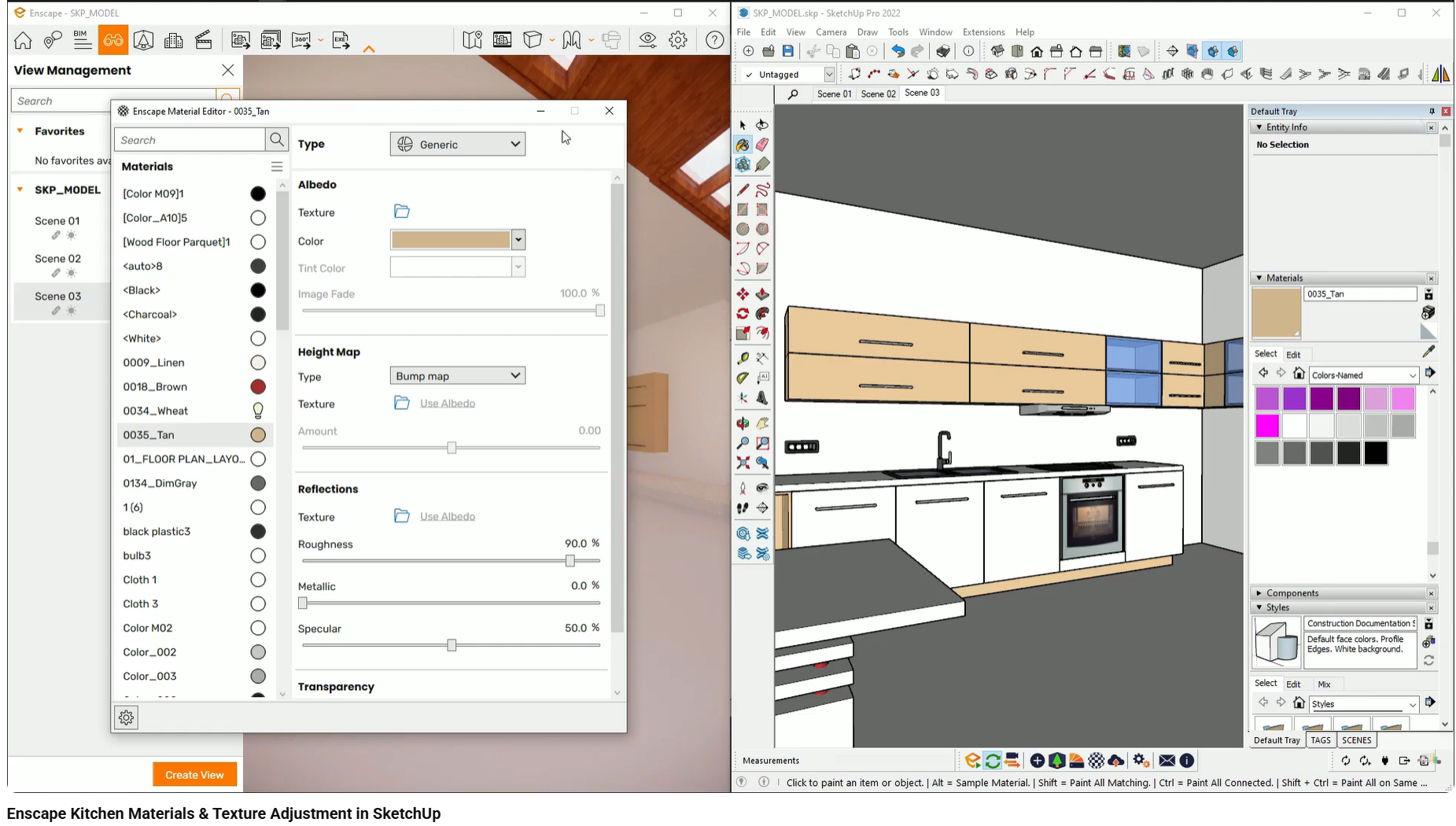
When materials behave realistically, clients stop focusing on the render and start evaluating the design.
Correct grain direction, believable scale, and visible depth allow clients to assess finishes as real design decisions rather than abstract textures. Discussions shift from “this looks fake” to meaningful comparisons between material options.
This change improves confidence and speeds up approvals.
What goes wrong:
Brick or stone looks like a flat image applied to a wall.
Why it happens:
Depth or displacement maps are not enabled.
How it affects client perception:
Finishes feel cheap and lack tactile realism.
What goes wrong:
Wood grain runs against structural logic.
Why it happens:
Material rotation is not adjusted for specific objects.
How it affects client perception:
The construction appears incorrect or careless.
What goes wrong:
Patterns repeat frequently across surfaces.
Why it happens:
Material scale remains at default settings.
How it affects client perception:
Surfaces read as low-resolution digital patterns.
What goes wrong:
Windows appear dark, opaque, or heavily tinted.
Why it happens:
Default opacity and tint settings are left unchanged.
How it affects client perception:
The space feels closed and unrealistic.
These issues often appear together, reinforcing the sense that materials are artificial.
This workflow is demonstrated step by step in the interior design visualization course, using real projects in SketchUp, Enscape, and Twinmotion. The course shows how materials are replaced, refined, and prepared for client-ready renders.
This article focuses on material realism inside the rendering engine. Topics such as custom texture creation, UV unwrapping, and post-production material editing are covered separately.
Why interior design materials often look fake in 3D renders and how scale, orientation, and depth affect realism.
Learn how to present luxury interior materials in 3D by refining scale, depth, and material logic to improve client confidence and approval.
Why construction-level joinery detail in 3D models increases client trust and confidence in interior design projects.